Remote Monitoring Mode
A new feature added to the App starting from V0.8. is remote monitoring mode. For remote monitoring mode the setup is a bit more complex as shown in figure 2. In this configuration we need two android devices that have a working network connection to the Internet:
- Android device A (typically located in the car) talks to the car via Bluetooth as in local monitoring mode.
- Device B can contact Device A via the Internet and request device A to retrieve certain information from the car so that device B can show this information to the remote user.
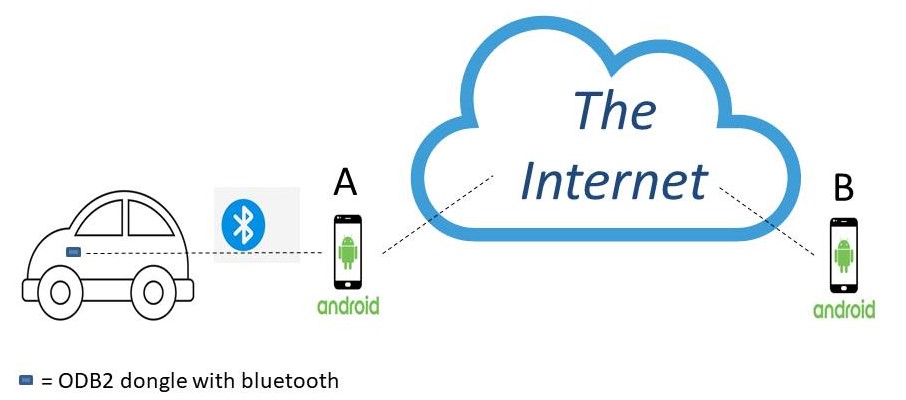
When comparing to local monitoring, the remote monitoring mode has several advantages and disadvantages:
Advantages
- Device B does not need a bluetooth connection to the car and can thus receive car reporting without being in the vicinity of the car.
- Many parameters are not provided by the car when it is not charging/powered on. With remote monitoring we buffer certain information in device A thus enabling device B to always obtain a value. E.g. With remote monitoring it is always possible to get an accurate view of the State Of Charge (SOC) of the car battery.
Disadvantages
- Need two devices with a working network connection.
- Where in local reporting the update frequency is often less than one second, with remote monitoring the update frequency is typically 20 seconds.
1. Remote Monitoring Setup
Remote Monitoring can only be used after subscription (note that there is a 1 month trial period free of charge). You can subscribe by pressing "SUBSCRIBE" on the "Remote Monitoring over the Internet" page.
After subscription, setting up remote monitoring only requires two steps:
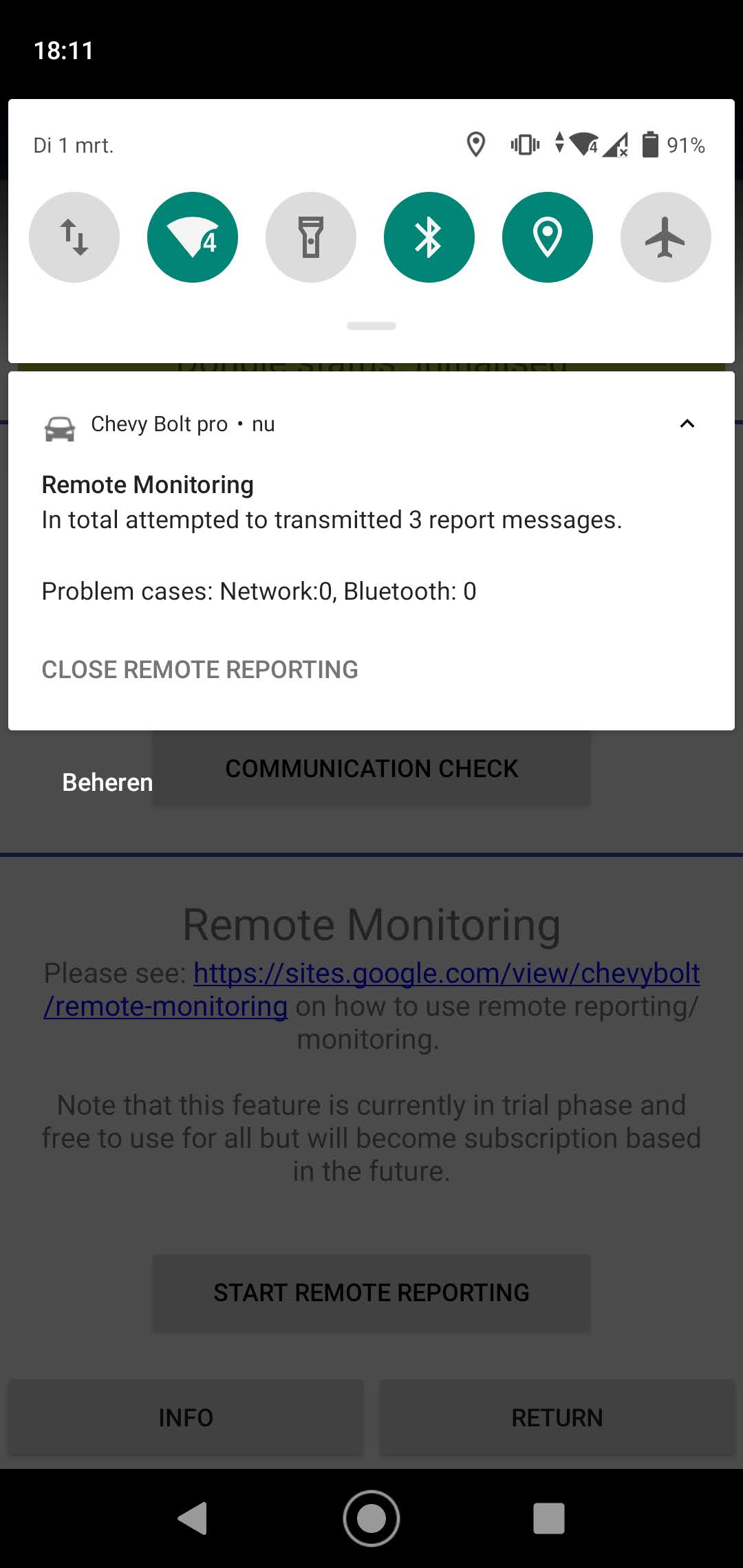
Start remote reporting on device A
Install the App on device A, go to the the Bluetooth menu (select "Communicate with ODB2 Dongle" in the start menu and follow setup instructions on local monitoring webpage) and select "Start remote reporting". A popup will show in which the Remote Reporting Id is provided. Carefully write down this remote monitoring id (you need it in step 2) and press "START". Now remote reporting is running, i.e. device A has a connection with the central server.
Configure the remote reporting id on device B
Next we need to ensure that device B retrieves the correct information from the Internet. For this we go to the settings menu (three dots on starting screen) and configure the Remote Monitoring id. Note that this is quite a tedious job. The App will try to check whether you entered the id correctly and warn you if the id is not in the correct format. In order to avoid confusion between the letters "l" (small L) and "I" (capital i), the "I" (capital i) is never used in the remote monitoring id. When you have configured the remote monitoring id, you are ready to run remote monitoring !
Managing / Stopping remote reporting
While remote reporting is running, a small car icon is shown in the notification bar on top of your screen. The notification provides information about the status of the ongoing remote reporting and can be used to end remote reporting.
2. Remote Monitoring Information
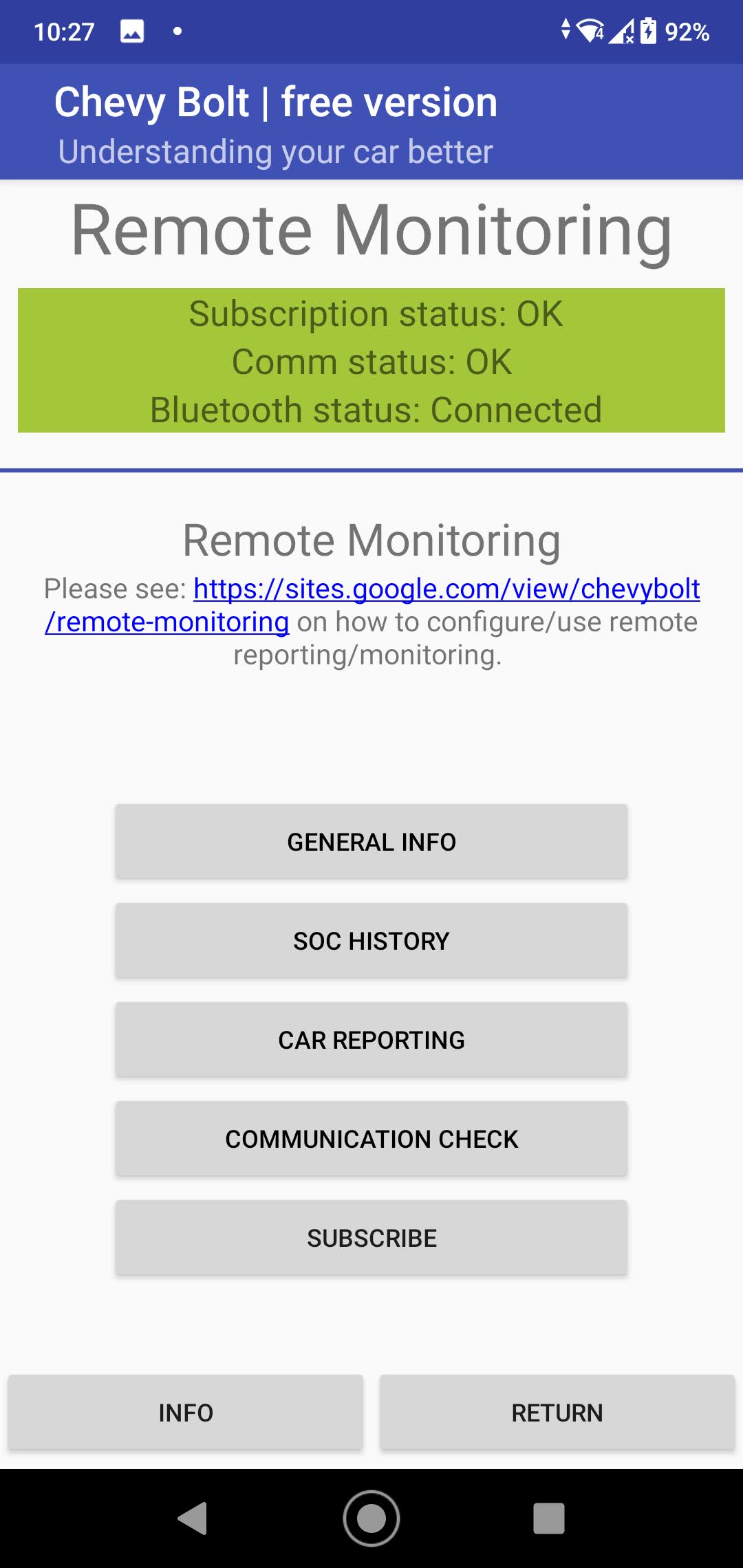
In order to run remote reporting on device B, select "Remote Monitoring over the Internet" in the home screen. The connection to the central server will be established and a "Remote Monitoring" screen will appear.
In this screen it is possible to select between four remote monitoring options (in addition to the subscribe button):
Remote Monitoring Option 1: General Info
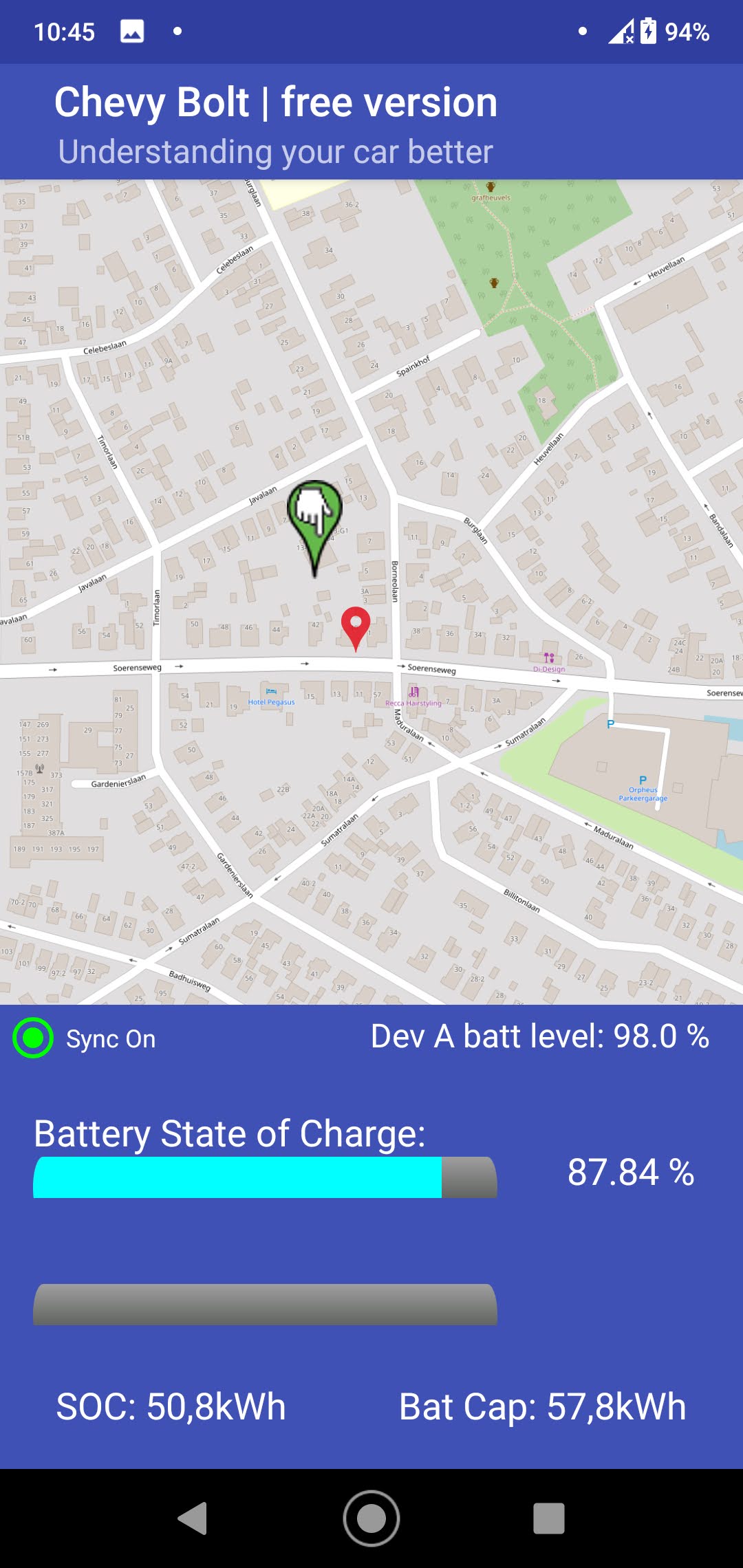
Selecting this option will provide a screen showing the following information:
- The location of the car (Green indicator)
- The location of Device B (Red indicator)
- The State Of Charge (SOC) of the car battery in % and kWh
- How much charge the car battery is receiving/delivering in kW
- The car battery capacity in kWh
In addition the battery level of device A is shown. This to warn the user when device A is running out of power (see below on device A power considerations).
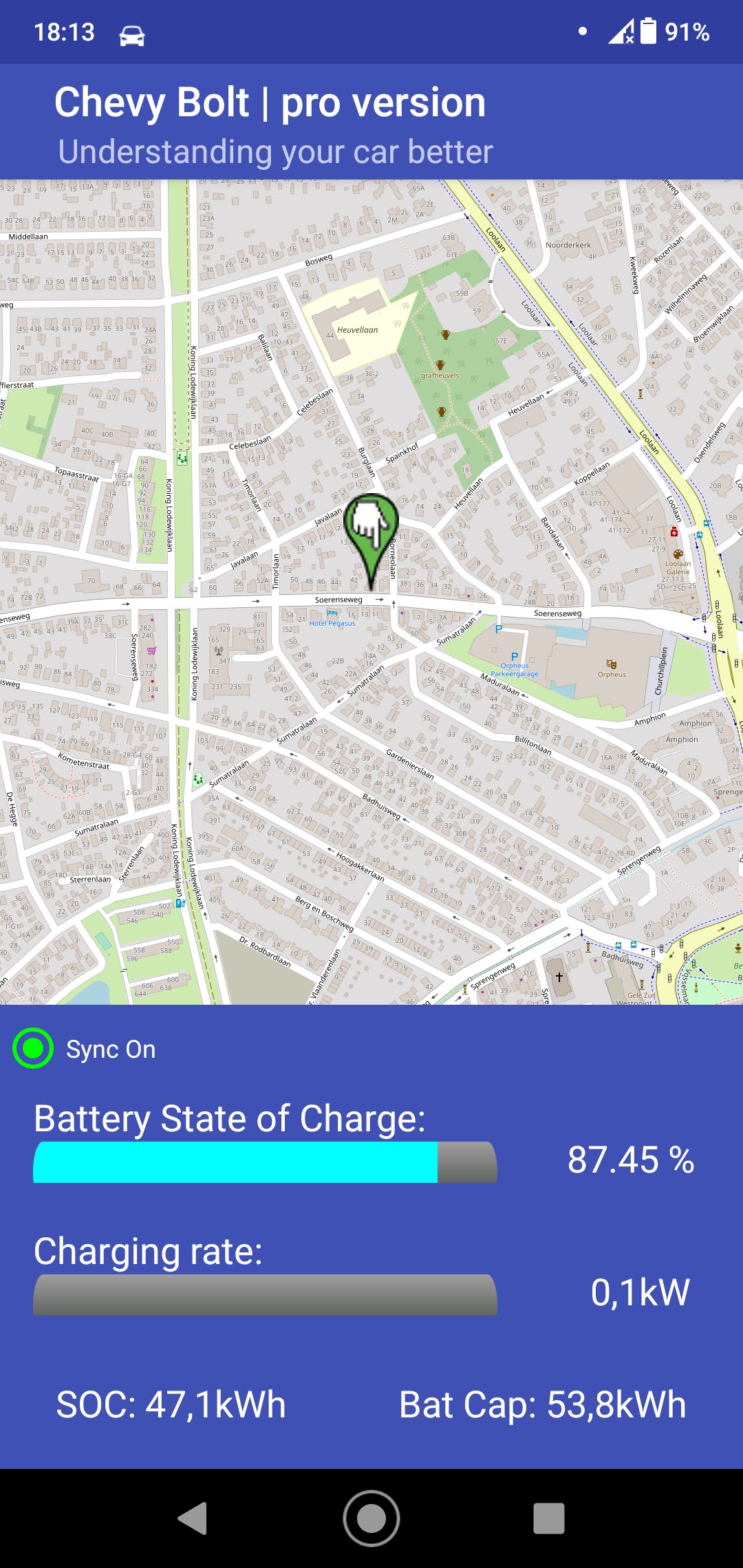
Some details about the provided information:
- The Sync indicator is green and indicates "Sync On" when device B was recently able to retrieve information from device A. Otherwise the Sync indicator is red and indicates "Sync Off".
- Since the car/device A may not always be able to provide all requested data (no data provided by the car over bluetooth, no positioning reception by device A), the sync indicator does not give a complete indication of how long ago the different information parts shown on this screen were retrieved. This is especially true for the location information, the SOC and the Battery capacity. All other information parts will always be "up to date".
- To find out how long ago the location information, SOC and Battery capacity were retrieved from the car/device A, click on the sync indicator: a popup will emerge indicating for each information part how long ago it was provided.
- Note that since the car does not provide Battery SOC (% and kWh) and Battery Capacity information when the car is turned off (not power on/not charging), but the car also does not use/gain any power if it is turned off/not charging, the depicted SOC/Battery Capacity information should always be correct.
Remote Monitoring Option 2: SOC History
From version 1.6 of the app, a State Of Charge (SOC) History screen is available in remote monitoring. For this screen, a continuous process in device A checks every 5 minutes whether a valid SOC value can be obtained.
- If no value can be obtained (e.g. car turned off), the process waits 5 minutes again.
- If a value can be obtained, the value is logged. A maximum of 40 values is logged.
Note that with this logging approach, there can be more than 5 minutes inbetween subsequent values if the car did not provide a value inbetween.
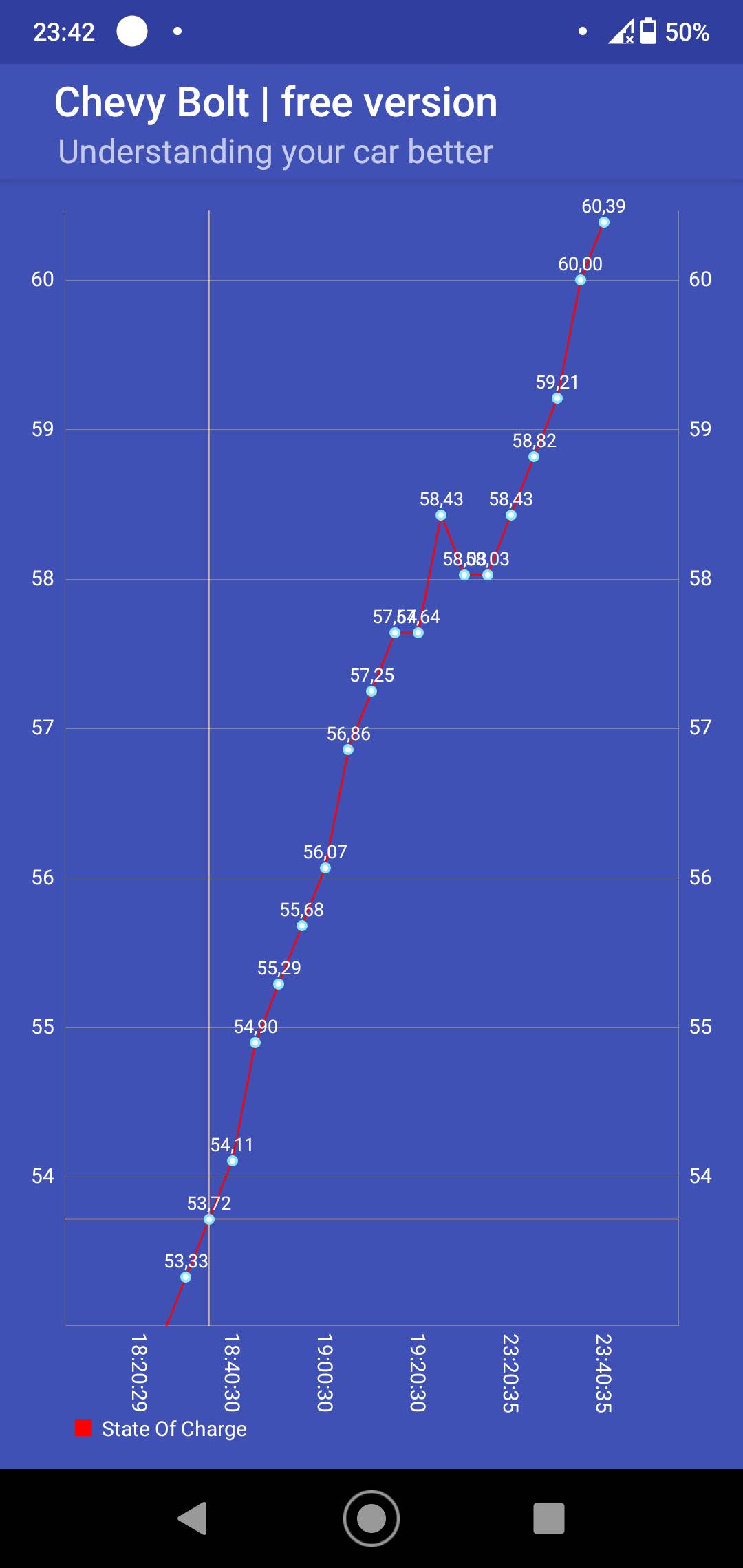
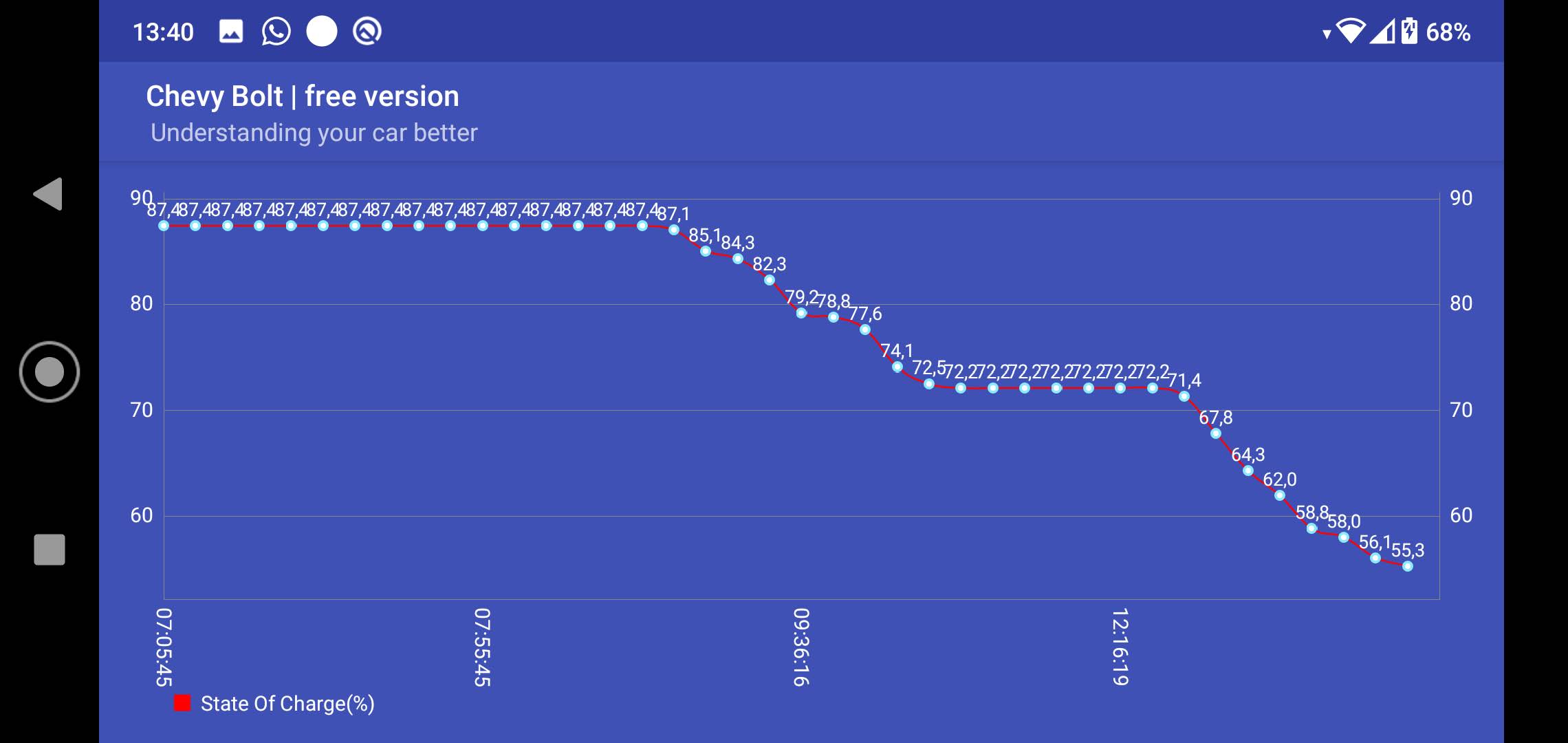
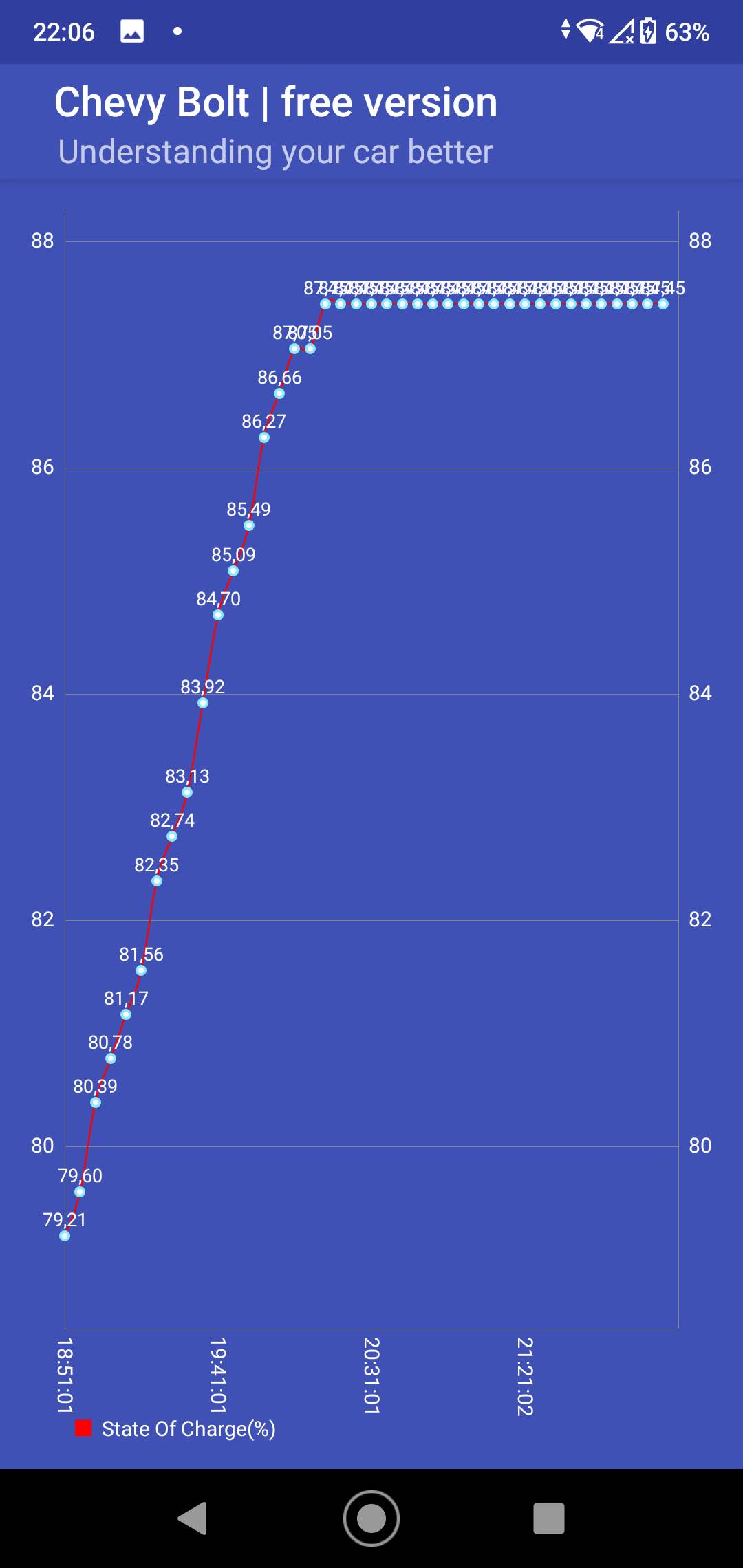
The obtained values are shown in the SOC History graph. With this graph, you should e.g. be able to get a good impression of how fast charging is working.
Some example screens are shown here:
- Example 1: The car is being charged with a 3kW charger, continuously up to 87.5 percent (hill top reserve).
- Example 2: Two phases of short driving with some idle time in between.
- Example 3: Car being charged, interrupted by some short driving.
Remote Monitoring Option 3: Car Reporting
When selecting this option, a Reporting Options screen very similar to the screen shown in local monitoring is provided. The user can select one of the reporting screens which will subsequently be provided (see example Battery Conditioning screen shown here).
Two differences compared to when using local monitoring:
- The status barr on top of the screen does not only provide information on the bluetooth connection status, but now also provides information on the status of the communication between device A and device B.
- The update frequency of the provided information is typically every 20 seconds instead of the more faster updates provided during local monitoring.
Remote Monitoring Option 4: Communication Check
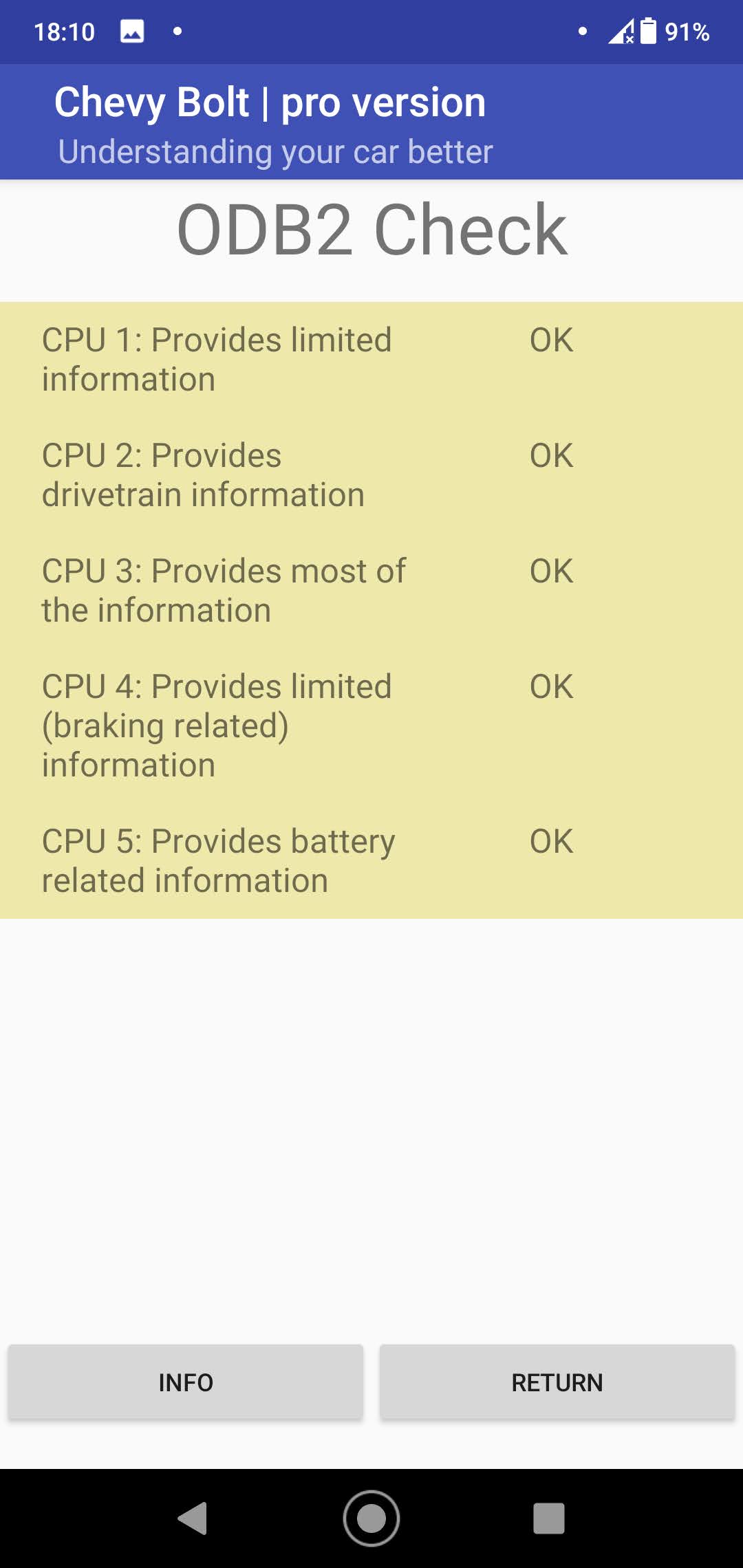
This is the same screen as provided in local monitoring.
3. Powering and Configuration of device A
3.1. Introduction
With remote monitoring, best results are obtained when device A always has sufficient battery power. E.g. device A will regularly try to obtain the battery SOC and store it for when the remote user wants to know the battery state of charge. This information is lost when device A runs out of power.
Typical location for device A would be inside the car thus enabling it to always talk to the OBD2 dongle and determine the correct location of the car. This brings the question of how to best power device A. We will first discuss two options for powering device A (sections 3.2 and 3.3), and then, in section 3.4, the device settings you should apply on device A so that remote monitoring works reliably.
3.2. Option A: Using in-car USB port / auxiliary power outlet
The car has 2/4 USB-ports located in the center console in the cabin. In addition there is an auxiliary power outlet (cigarette lighter) at the front of the cabin. It is very easy to power device A with any of these outlets. However there are two problems:
3.3. Option B: providing device A with continuous power
Both above problems can be avoided if we would find a way to provide continuous power to device A. Luckily such an option exists: the OBD2 dongle is always powered.
The solution is relatively simple when we buy an OBD2 splitter and an OBD2 power adapter (see pictures). Both devices can be bought at numerous locations. Make sure you buy the power adapter with the correct connector for your phone/device A.
3.4. Configuring device A
To save battery and mobile data, device A does not keep a permanent connection to the central server open. Instead it is woken on demand by a push notification the moment device B asks for information. For this wake-up to arrive quickly, and for the connection to stay reliable, please apply the following settings. They are only needed on device A, not on device B.
3.5. Will device A empty my car batteries ?
The impact of the device A battery consumption is very low compared to the battery power available in the car:
- Let us assume we use a phone for device A. Such a device A will use something like 4000mAh per day. Assuming a Li-on battery in the phone with a 4V operating voltage, this means that device A will consume around (4x4=) 16Wh per day.
- When device A is powered by an outlet in the car, the power is drawn from the 12V car battery. This is a 50Ah AGM battery in this car which can provide a total energy of (12x50=) 600Wh. So only after many days the device A could have an impact on the 12V battery charge.
- However the car regularly checks the voltage level of the 12V battery. When it would become low, it will charge the 12V battery from the car traction battery. This traction battery has a total capacity of more than 60000Wh.
Stating it differently: if we assume the car uses 150Wh/km or 240Wh/mile, it will take 9 days for the device A to have used the power equal to driving 1 km, or 15 days for the device A to have used the power required for driving one mile.
3.6. Other options ?
If somebody is aware of an alternative (easier) option to power device A, please let me know at gjsoftinfo@gmail.com and I will include it here.
4. More detailed considerations
1. Network data load
The communication between device A and device B uses a simple, low-overhead protocol, so the data spent on an actual request/response is tiny — a few kilobytes per retrieval. The total daily data used by a device-A phone is larger than this, however, for two reasons: to be able to receive a wake-up the instant device B asks for information, the phone keeps a lightweight push/keep-alive channel to Google's servers alive at all times and does small periodic check-ins; and on top of that there is the normal Android/Google background traffic that every phone generates.
In practice the total data used by a device-A phone is typically in the order of 8–30 MB per day (roughly 250 MB–1 GB per month), most of which is this background and keep-alive traffic rather than the remote-monitoring requests themselves. This still fits comfortably within a modest mobile data plan — about 1 GB per month is plenty — so an inexpensive SIM is sufficient. The exact figure depends on the phone and how often remote monitoring is used.
2. Size of Remote Monitoring Id
The number of different remote monitoring id's equals 602486784535040000000000000. The size of the remote monitoring id is selected such that it is virtually impossible to guess a used id or to determine it by trial and error.
3. Parallel usage
The App supports the following parallel usages:
- Local Monitoring & Remote Reporting. The App is designed such that it supports Local Monitoring screens while remote reporting is turned on. So you can use local monitoring in your car on device A while device A is performing remote reporting.
- Local Monitoring & Remote Monitoring. It is also possible to go to the Remote Monitoring screen while remote reporting is turned on on the same device. This basically integrates device A and device B in one Android device.
Since it is not possible to have both remote reporting and local reporting contact the OBD2 dongle at the same point in time, one will be delayed when the other one is communicating with the OBD2 dongle. E.g. when remote reporting is requesting a certain screen but local reporting is currently talking to the ODB2 dongle, a temporary indication of "communication delayed" will be shown to the remote user.